
How to fix “file has script tag” error on the Vietnam evisa application?
Question
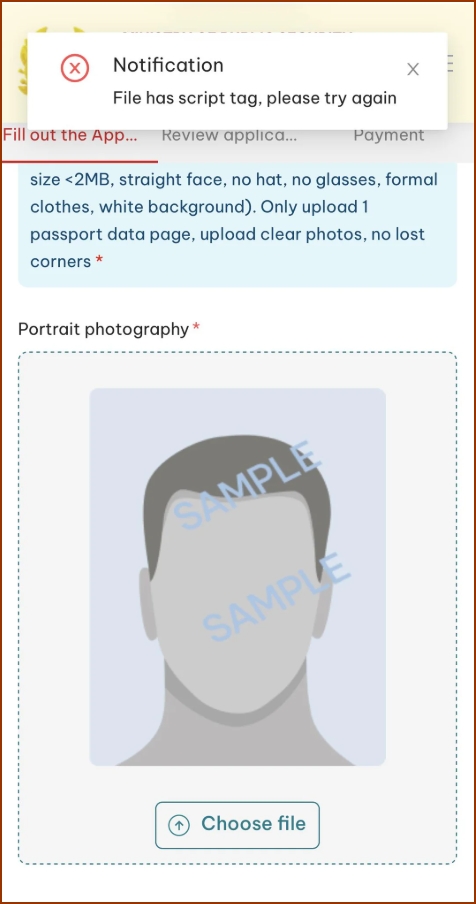
I’m trying to apply for a Vietnam e-visa via the government website, but I’m getting the error “file has script tag, please try again” when I try to upload the passport data page. I tried to change the name, remove metadata, take a screenshot, and save through the paint tool but can’t get through. What should I do to fix the error?
Answer
When uploading a photo to a Vietnam e-visa application via the government website, you may sometimes encounter an unexpected error saying that the photo contains a script tag or unsupported metadata. This can be confusing because the photo itself may look completely normal and meet the required size and format.
The problem may not be visible in the image. Instead, it can be caused by metadata or additional information embedded in the image file. In some cases, an image file may also contain unexpected or unsupported data that an online application system interprets incorrectly, resulting in an upload error.
What is photo metadata?
Metadata is information stored inside a digital image file. Depending on how the photo was created, edited, or downloaded, it may contain details such as:
- The device or camera used to take the photo
- The date and time the photo was taken
- GPS or location information
- Editing software information
- File creation or modification details
- Other technical information associated with the image
How can you fix the problem?
If your photo meets the application’s requirements but cannot be uploaded because of a metadata or script tag error, you can try the following solutions:
1. Check the file format and size
Make sure the photo is saved in an accepted format, such as JPG or PNG, and does not exceed the maximum file size specified by the application system.
2. Take a screenshot of the photo
Opening the photo and taking a screenshot can create a new image file without some of the original file’s metadata. You can then crop the screenshot if necessary and try uploading the new file.
3. Send the photo through a messaging app
Another option is to send the photo to yourself through an app such as WhatsApp and download the received image. The resulting file may have different metadata from the original and may work when uploaded.
4. Retake the photo using another device
If the problem continues, try taking a new photo with another smartphone. Make sure the new image meets all the application’s requirements before uploading it.
5. Work on your computer
Locate the photo file on your computer and perform the following actions:
- Right-click the photo file
- Click Properties
- Open the Details tab
- Click Remove Properties and Personal Information at the bottom.
- Choose to create a copy with all properties removed
If you have tried all of the above solutions without success, we can help you expedite the evisa application via the government website. Let’s apply for Vietnam visa with us for peace of mind!
